Reporting a New Exemption
1. Log in to your CE Broker account and click View Details to select the license you want to submit an exemption for.
2. Click ⊕ Report CE at the left side of the page.
3. You will now see the Report Continuing Education page. Click on the Additional Options tab.
4. Select the licensing period for which you are reporting the exemption.
The dates you choose should align with your current license cycle.
Example: If your license must be renewed on or before 07/31/2024, report your exemption for the cycle 08/01/2022 – 07/31/2024.
The start date you select should always be before your renewal deadline/expiration.
5. Click Learn More ˅ under the exemption options to find out more about each category and if you qualify.
6. If applicable, click Begin next to the appropriate option to report your exemption.
7. Answer the questions as prompted and click Continue to advance the submission form.
Please note that depending on the type of exemption, be prepared to attach supporting documentation (ie: college transcript, national certification, etc.)
8. To check on the status of a reported exemption, view your CE Broker Course History. Here is an article that covers all you need to know: Your Course History
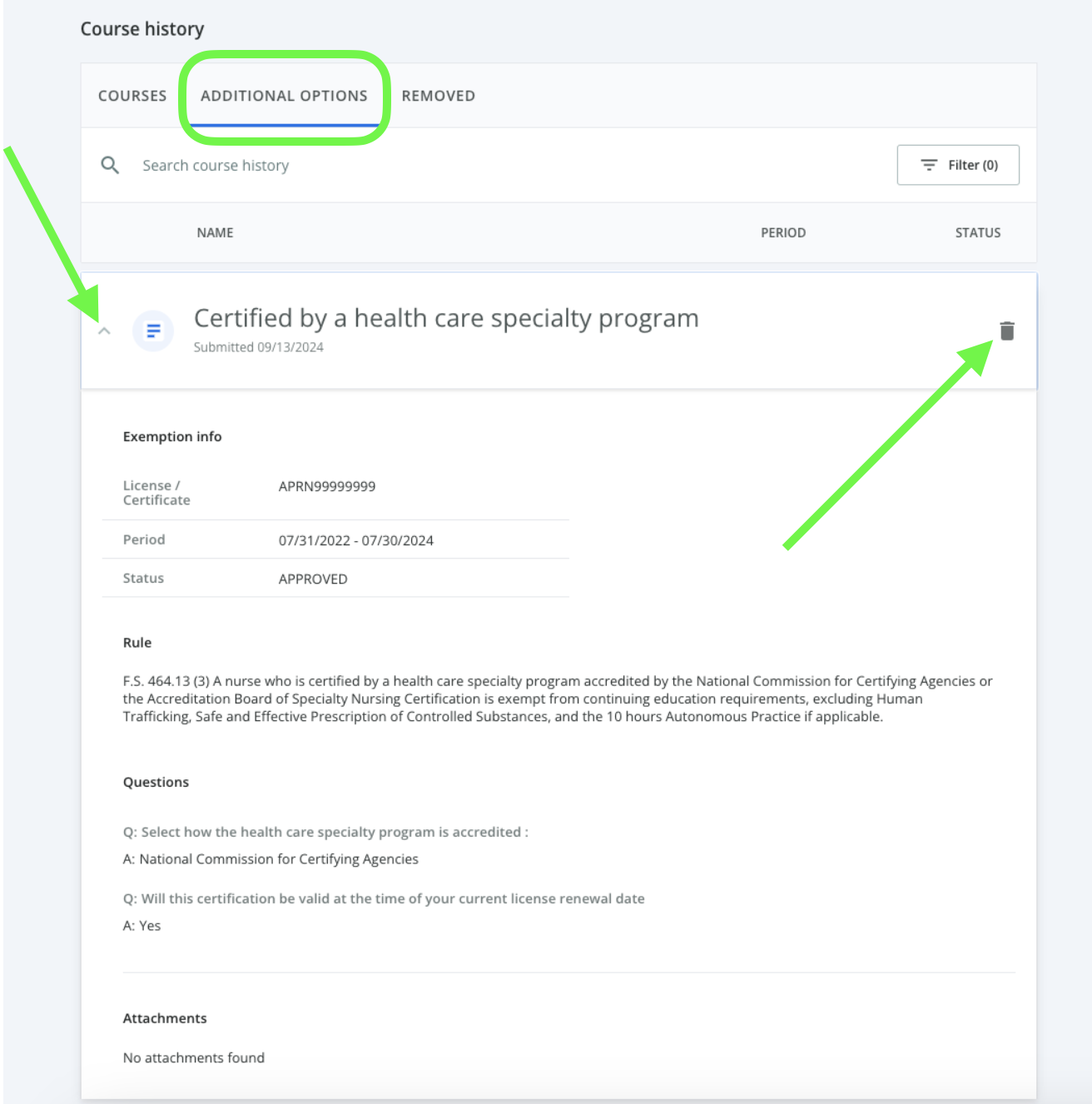
- Select the Additional Options section.
-
Approval times vary by board, so we recommend waiting at least one week for your request to process.
Deleting a Reported Exemption
- Click on the exemption to expand it.
- Click the trash bin 🗑️ icon.
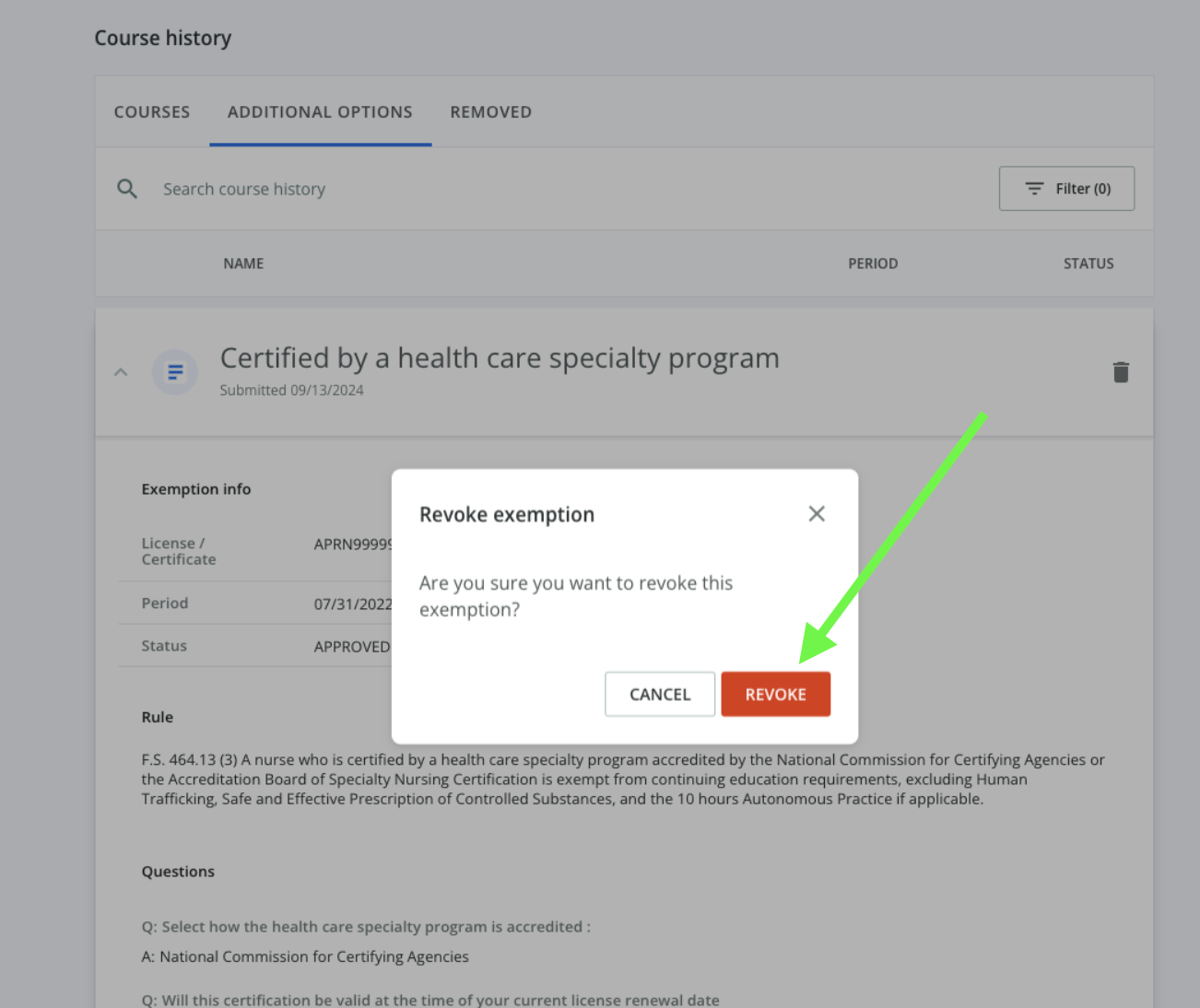
- Click Revoke to confirm.
Exemption Statuses
Approved: Your exemption has been applied and your requirements have automatically updated accordingly.
Pending: Your exemption request has been routed to your regulating entity/Board for review. This status will change once the Board has made a decision.
Disapproved: The Board has denied your exemption request and your requirements have not been changed. Reach out to your Board directly with any questions.
Revoked: Exemptions that have been reported in error and removed at your request will remain on your exemptions tab with the "Revoked" status.
Please feel free to review the following articles related to this topic for additional context and guidance: